How to Make a Lead Sheet with Easy Score, Step by Step
Make a lead sheet in your browser with Easy Score: set up the song, click in the melody or drop MIDI from your DAW, add chords and lyrics, then print or export it.
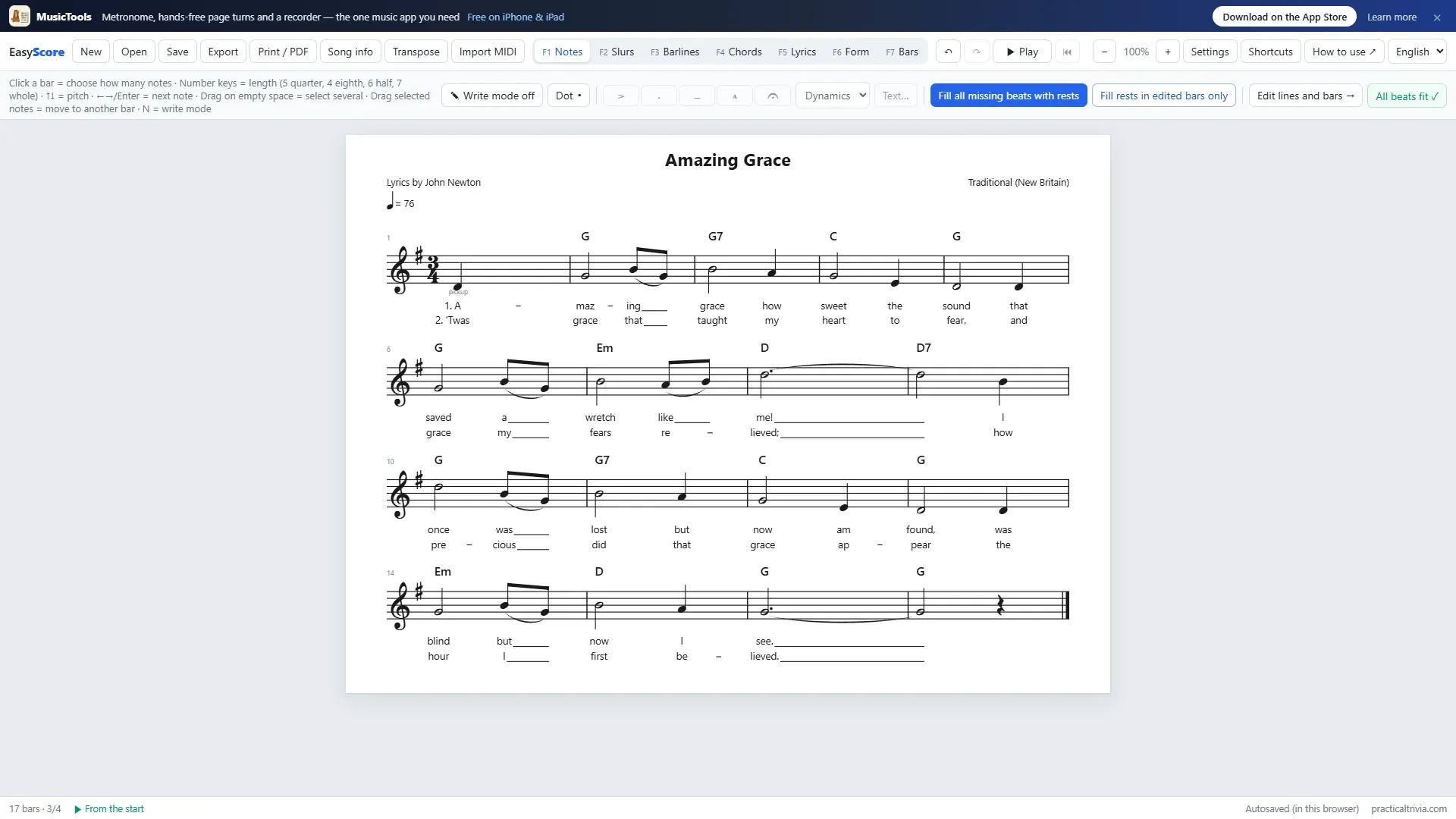
This is a walk through Easy Score, my free lead sheet maker, from an empty page to a printed lead sheet. I’ll write Amazing Grace, whose tune and words are in the public domain. Keep Easy Score open in another tab and follow along. The Shortcuts button in the app has every key on one page, and How to use brings you back here.
1. Start a new score
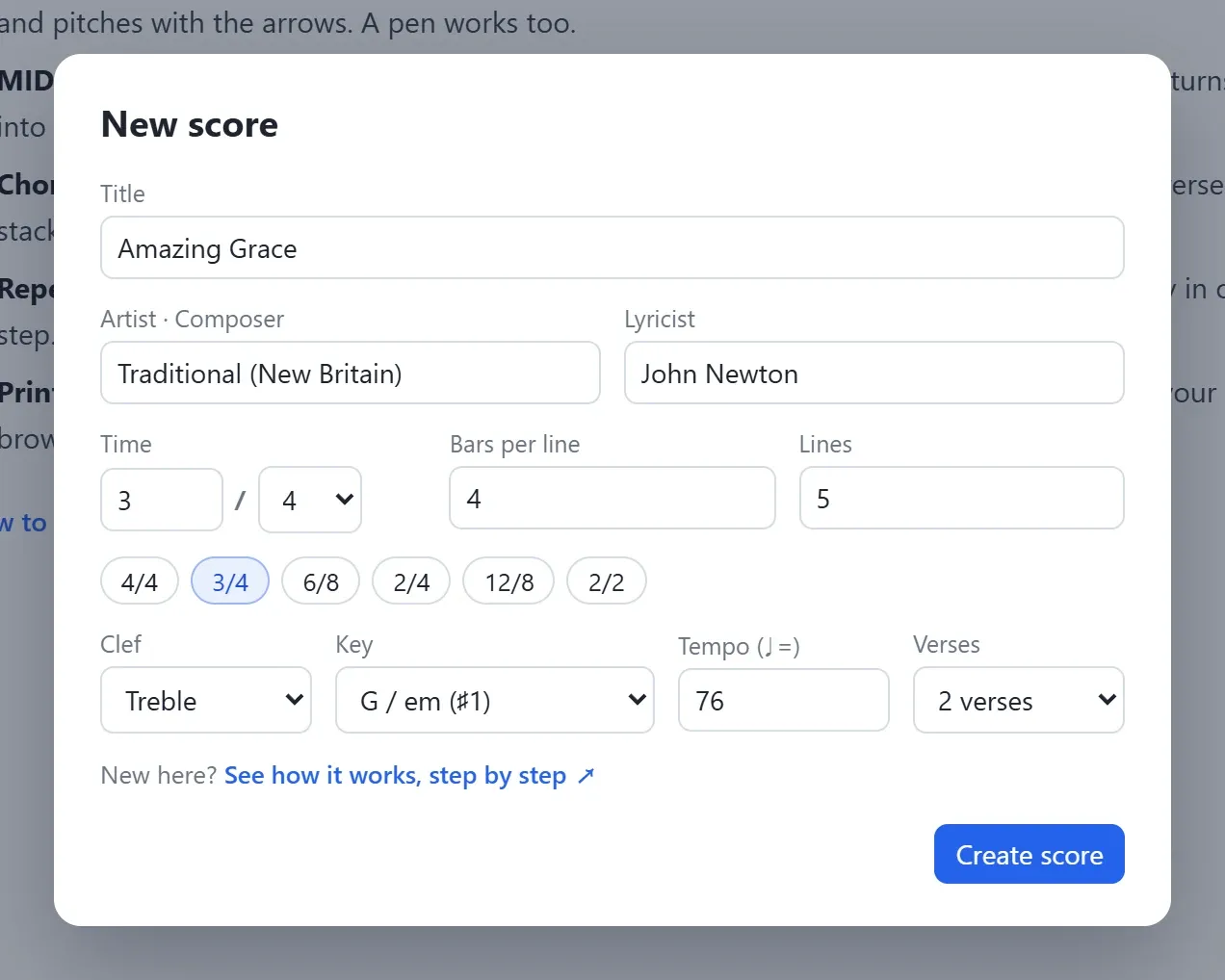
Open Easy Score and the New score window comes up. Fill in the title, and if you like, the artist or composer (it goes at the top right of the page) and the lyricist (top left). Then the time signature, the key, the tempo, how many bars go on a line and how many lines to start with.
Verses is the number of lyric rows. Amazing Grace has several verses, so I picked 2. All of this can be changed later in Song info, and you can add or remove bars and lines at any time.
The song starts with a pickup, a bar with just one beat. Right-click the first bar and choose Make it a pickup bar, and Easy Score won’t mark it as short.
2. Write the melody
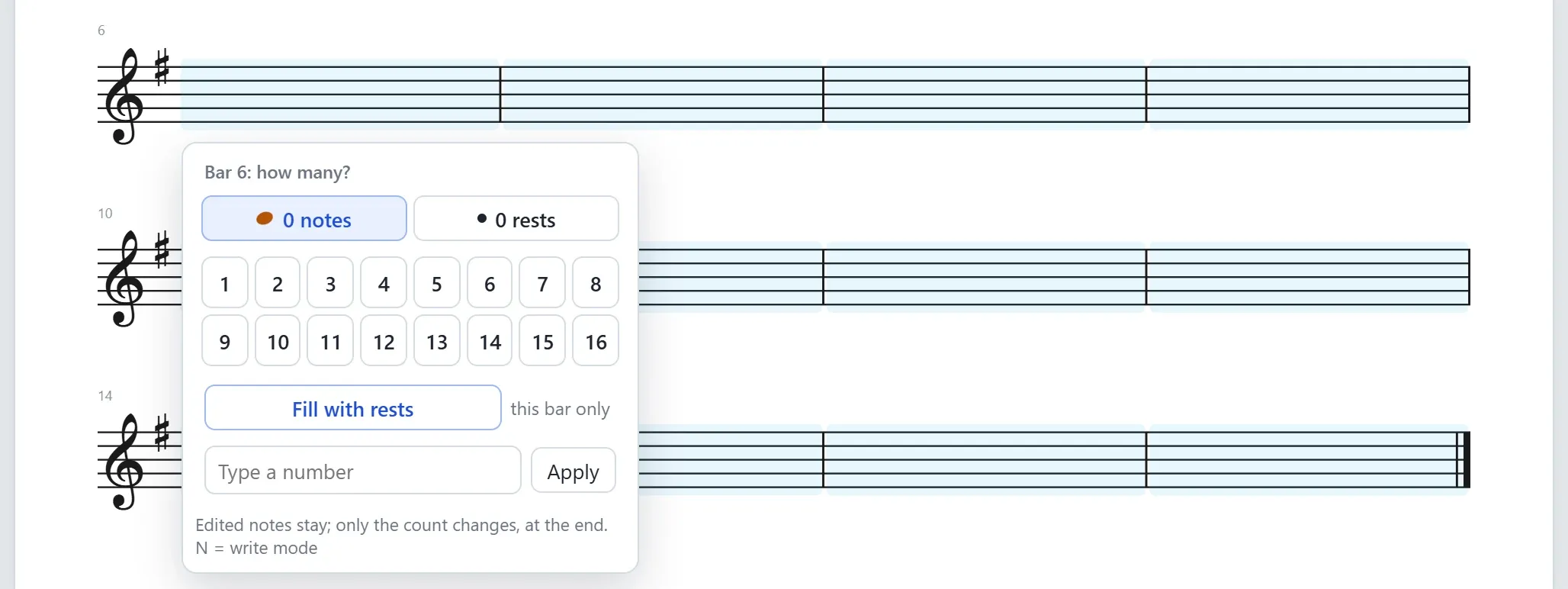
In Notes mode (F1), click a bar and choose how many notes it has. They appear as noteheads without a length yet. Give each one its length with a number key and its pitch with the arrows; Enter or → moves on to the next note.
| Key | What it does |
|---|---|
| 3 · 4 · 5 · 6 · 7 | 16th, eighth, quarter, half, whole note |
| . | dotted (press again to undo) |
| 0 | make it a rest |
| T | triplet |
| ↑ ↓ | one step up or down (Shift: a semitone, Ctrl: an octave) |
| A to G | jump to that note |
| ← → or Enter | previous or next note |
A bar whose beats don’t add up turns red, and the red button at the top right takes you to the next one. Fill rests in edited bars only fills the gaps in the bars you’ve worked on; Fill all missing beats with rests does every bar. Bars you haven’t touched yet stay blue.
If you’d rather point and click, press N for write mode: click the staff at the height you want, drag a note up or down to change its pitch, and let go to choose its length. It works with a pen, too.
3. Or bring the melody in from your DAW
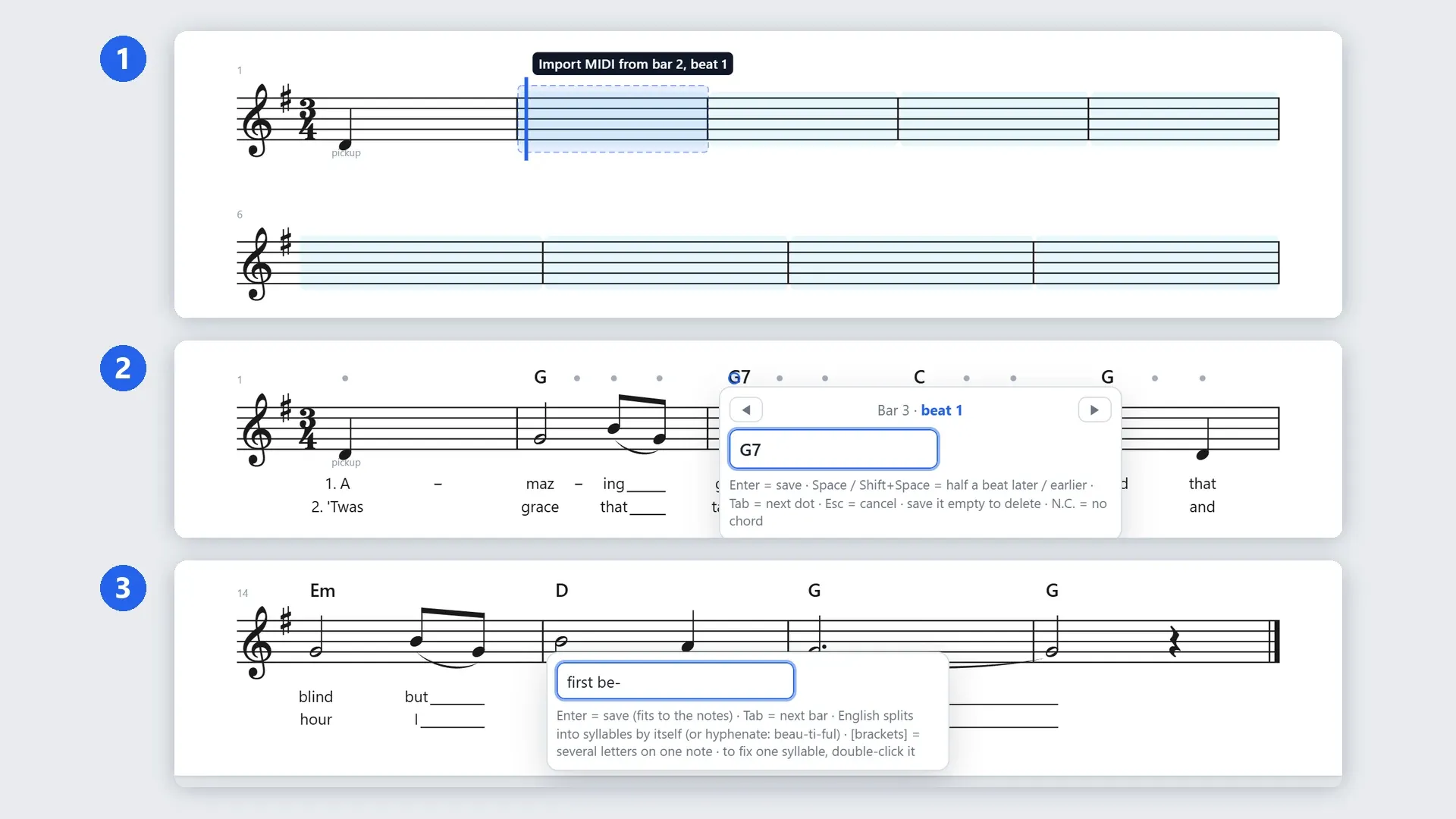
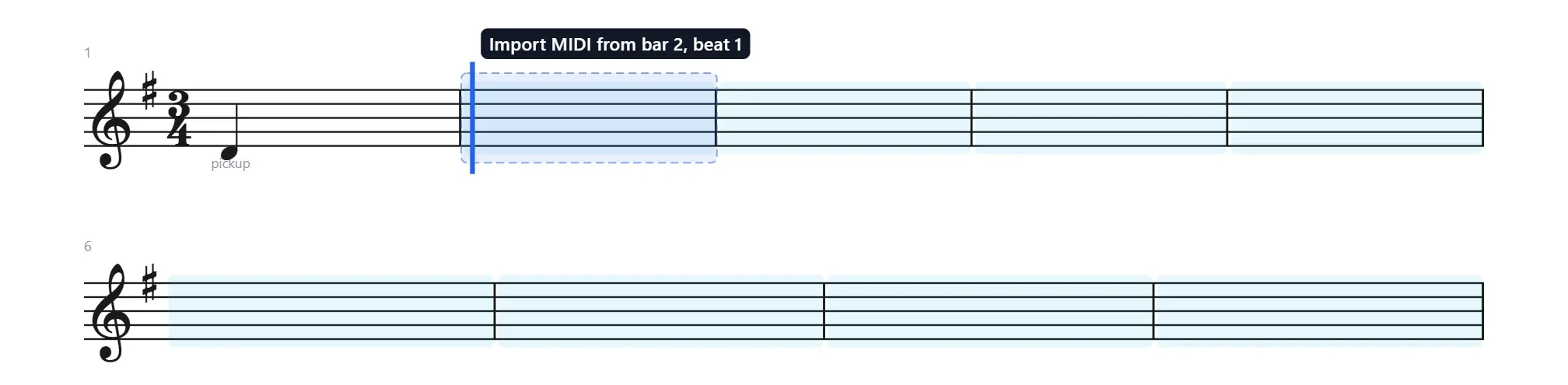
If the melody is already in your DAW, skip the typing. Drag the MIDI onto the bar where it starts, and a blue marker shows the bar and beat it will land on.
- Cubase: drag the MIDI part from the project window straight onto the bar.
- Other DAWs: export the part as a .mid file, or drag it to your desktop first, and drop that file on the bar.
- Import MIDI in the toolbar does the same from a file dialog, starting at the selected bar.
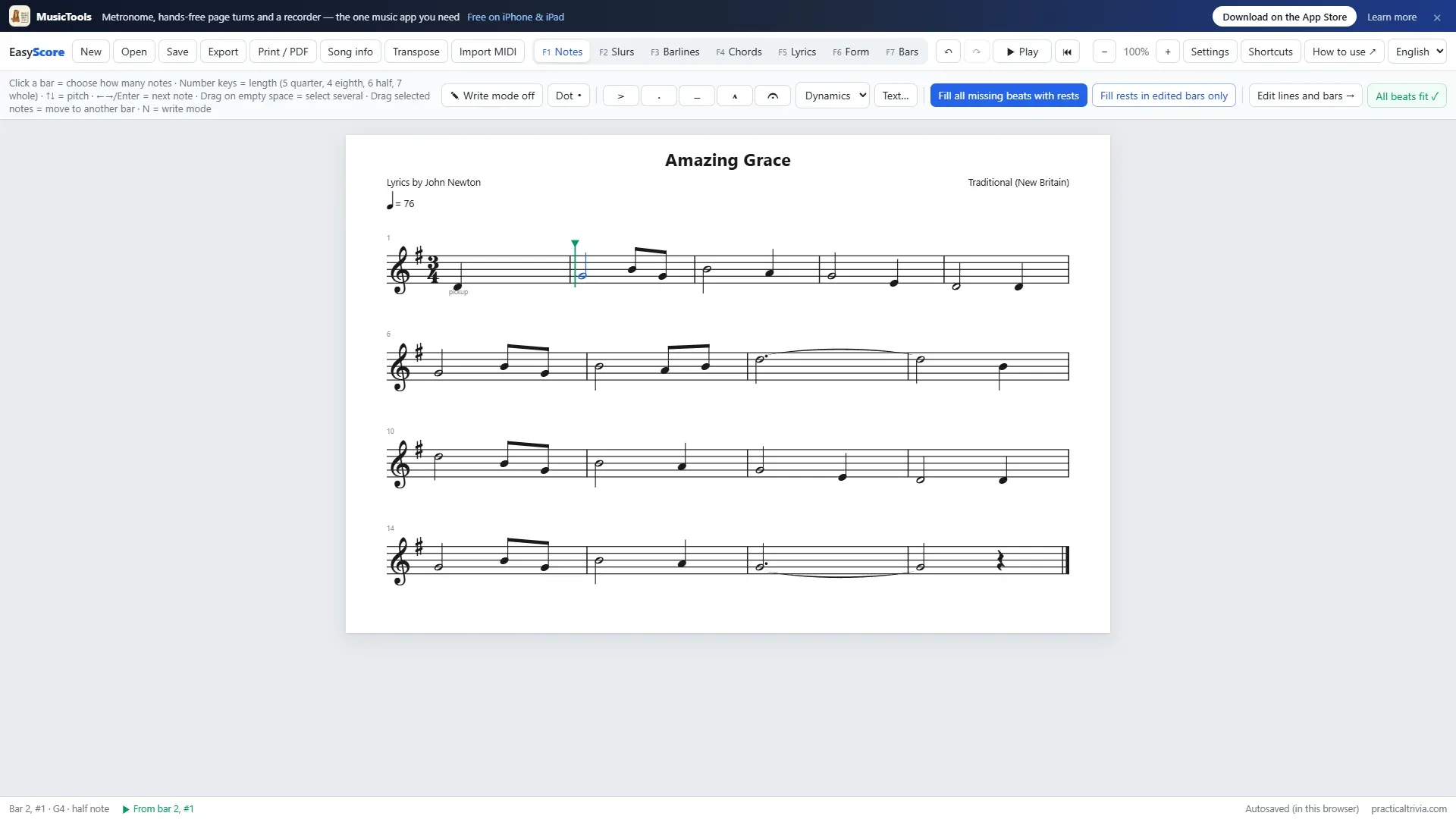
The notes come in on a 16th-note grid; Settings › Snap imported MIDI to has 32nds too. Where notes overlap, the top one stays, so a melody with a harmony part under it keeps the melody. Long notes are split at the barlines and tied. I typed the pickup by hand and dropped the MIDI on bar 2:
4. Add the chords
Switch to Chords (F4). Above every bar there’s a dot on each beat. Click a dot (or the gap between two, for the half beat), type the chord and press Enter.

- Space and Shift+Space move the box half a beat later or earlier, and Tab goes to the next dot.
- Save the box empty to remove a chord; N.C. means no chord.
- The usual spellings work: C, Cm7, Cmaj7, F#m7b5, Gsus4, C/E and so on.
Playback can play the chords too: turn on Play chords and bass too in Settings.
5. Add the lyrics
Lyrics (F5) are typed a bar at a time. Click a bar, type the words sung in it and press Enter: the syllables go onto the notes in order, and Tab takes you to the next bar.

- English words split into syllables by themselves. To split a word your way, use hyphens: beau-ti-ful.
- A word that runs into the next bar ends with a hyphen, like A- before maz-ing.
- Notes inside a slur or a tie carry the syllable before them, with a line drawn out after it.
- More syllables than notes? The extra ones show in red; drag them onto the notes they belong to.
- To fix a single syllable, double-click it.
For more verses, raise Verses in Song info and pick the verse you’re typing with the buttons at the top. Each line of music shows only the verses that are sung there, so a chorus sung three times can carry three rows while the rest of the song carries one.
6. Repeats, endings and the road map
In Barlines mode (F3), click a barline for repeat signs, a double barline or the final barline. Click a bar for 1st and 2nd endings, Segno, Coda, To Coda, D.S. al Coda, D.C. al Fine and the rest. To put one ending over several bars, drag across them or Shift+click.
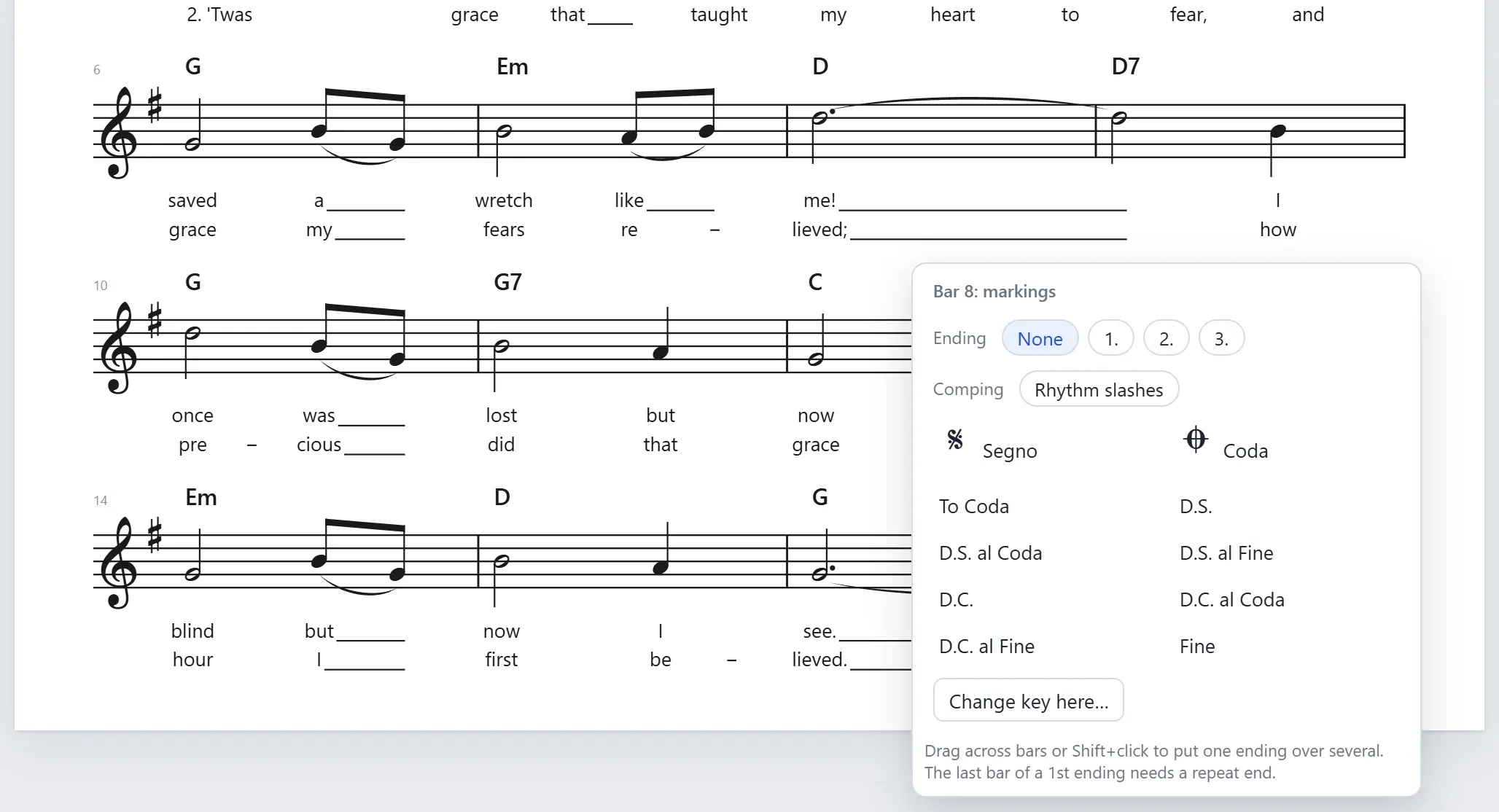
While you’re in this mode, the status bar at the bottom shows the order the bars will be played in, and playback follows it, so you can check the road map by ear.
7. Song form, slurs and bars
- Form (F6): click above a bar to name the section: Intro, Verse, Chorus, Bridge.
- Slurs (F2): drag from one note onto another for a slur. Select it and press T to turn it into a tie.
- Bars (F7): select bars to copy, cut, paste or delete them, or drag them somewhere else. Insert whole lines for an intro or an interlude. Auto-fit sizes the bars to their notes.
- Transpose moves the whole song to a new key. To change key in the middle, right-click a bar and choose Change key here…; tick Move notes and chords too for a key-up last chorus.
- Dynamics, accents, fermatas and tempo text: select a note in Notes mode and use the buttons above the score. Write ♩=100 as tempo text and playback takes that tempo.
8. Play it, print it, save it
Space plays from the green marker, and clicking any note starts from there. When it looks right, Print / PDF opens the print window; choose Save as PDF for a PDF file. Export saves MusicXML for MuseScore, Sibelius, Finale or Dorico, MIDI for your DAW with the repeats played out, or a WAV guide track.
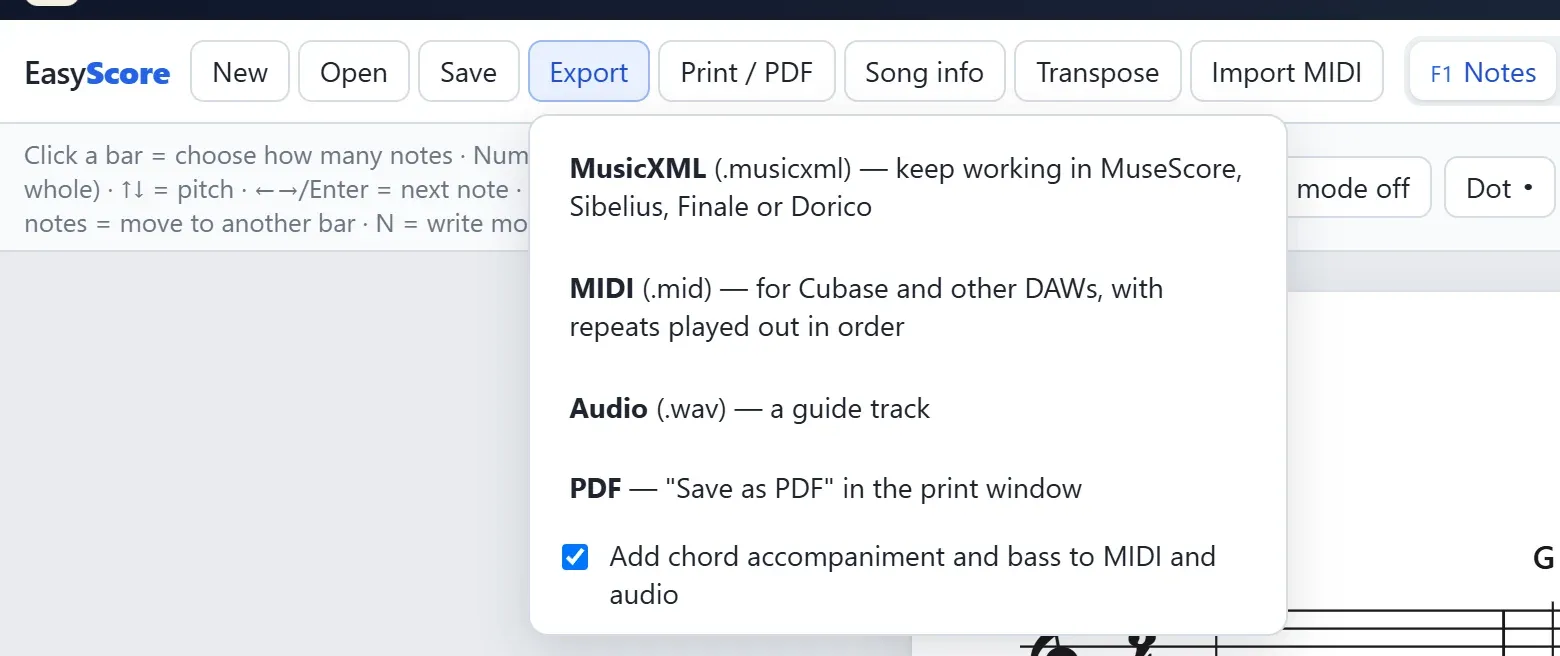
Your work is saved in the browser as you go. Save (Ctrl+S) also writes an Easy Score file to your computer, which you can open later, on another computer too. Open reads MusicXML files as well.
Keys worth remembering
| Key | What it does |
|---|---|
| F1 to F7 | Notes, Slurs, Barlines, Chords, Lyrics, Form, Bars |
| Tab / Shift+Tab | next / previous mode |
| Space | play / stop |
| Ctrl+Z / Ctrl+Y | undo / redo |
| Ctrl+S / Ctrl+O / Ctrl+P | save / open / print |
| Ctrl + mouse wheel | zoom |
If something still doesn’t make sense, or Easy Score is missing something you need, my email is on the About page. And when the lead sheet is printed and on the music stand, MusicTools, the iPad and iPhone app I make for reading scores, turns the pages for you, with a metronome and a recorder built in.