Practicing Piano with My iPad Score App and Its Auto Page Turner
Practicing piano with MusicTools, the iPad score app I make: a scanned lesson book, half-page turns, page turns with my lips, recording and PDF sharing.
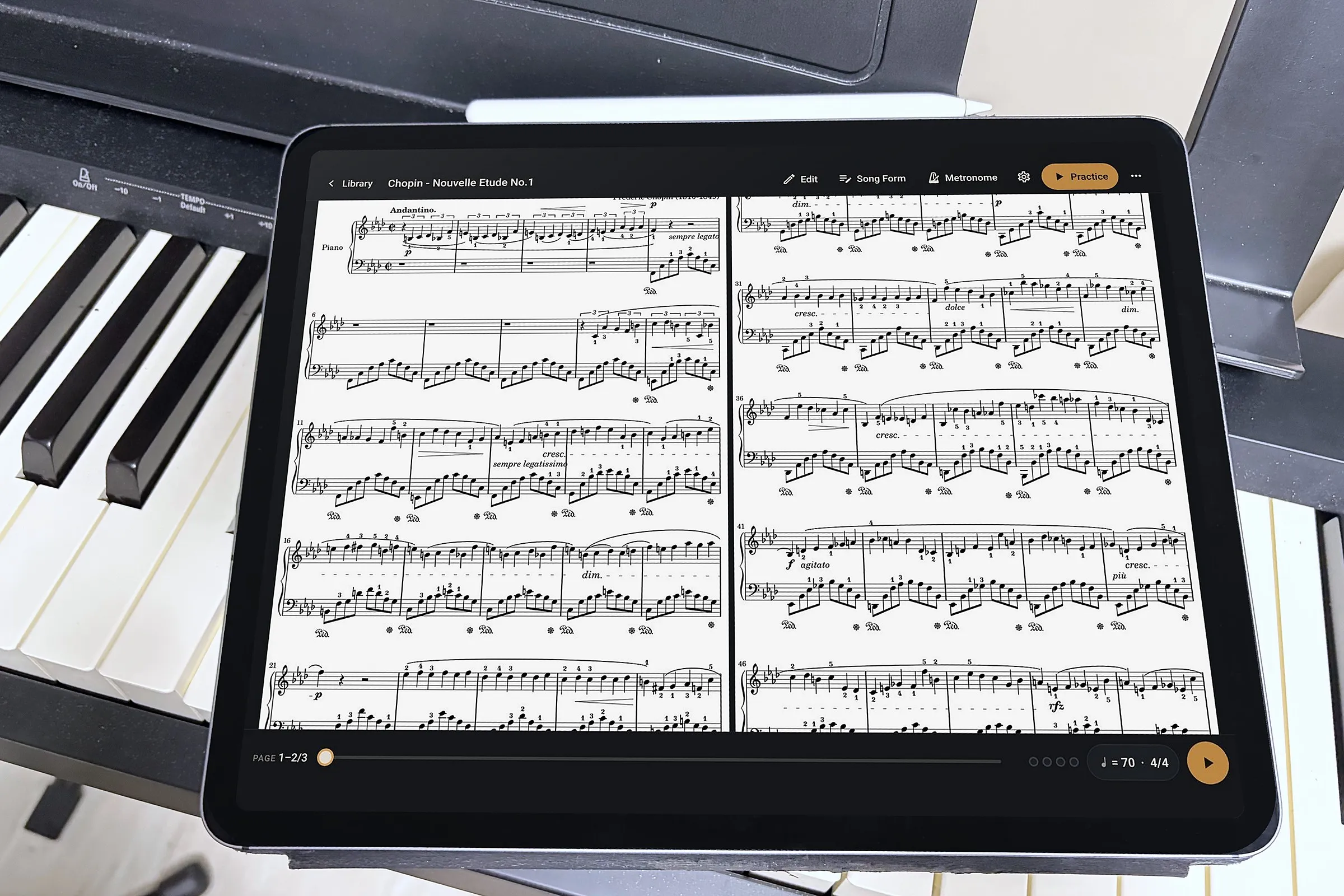
I make an iPad score app called MusicTools, a sheet music reader for pianists and other musicians. On the App Store it goes by MusicTools: Auto Page Turner, because turning the pages for you is the whole idea: your hands stay on the keys. Lately I’ve been using it for my own piano practice, with the iPad on the music stand, and I wanted to write down how that actually went.
Most of it worked well, and one thing didn’t quite work for me. Here’s all of it.
Scanning my old piano lesson book
The first thing I tried was the book I used to learn from with my piano teacher. It only exists on paper, so I scanned its pages into the app.
They came out clean. The staff lines were straight and level, lined up exactly, and the shadows were gone. Every page came out the same size, too, so the music stayed in the same place from one page to the next. That matters more than it sounds: when every page of a score sits at a slightly different angle and size, reading from it for long makes me dizzy. With these pages that didn’t happen; reading them felt like reading a printed PDF.
My lesson book is under copyright, so the pictures here use a public-domain score instead.
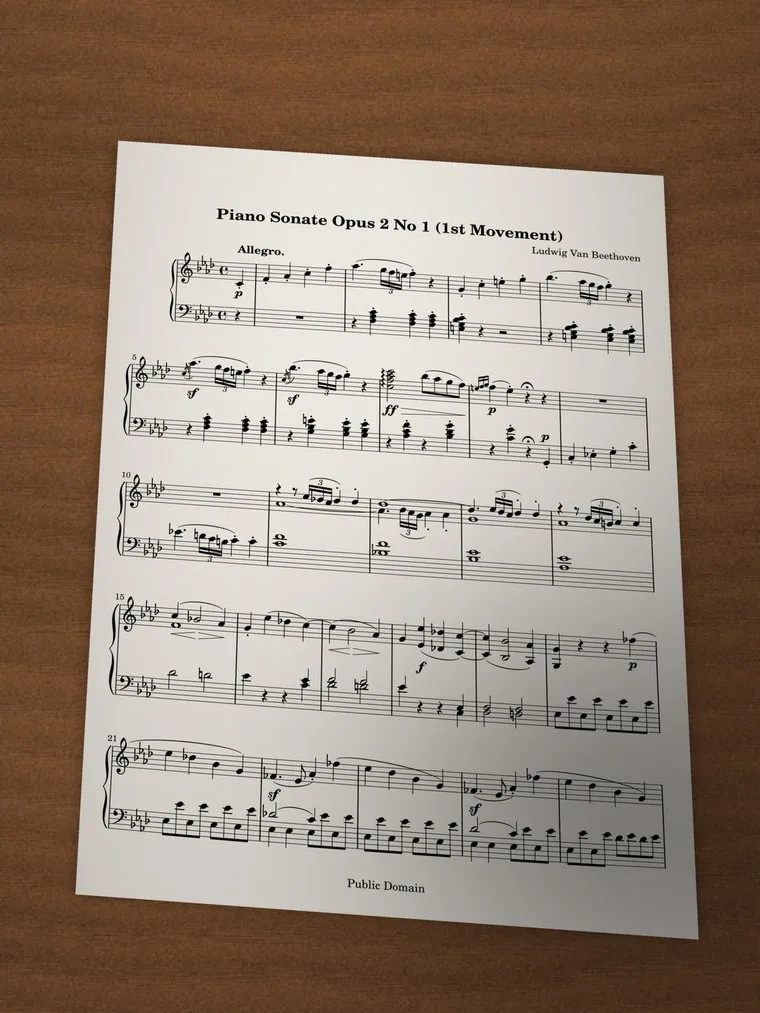
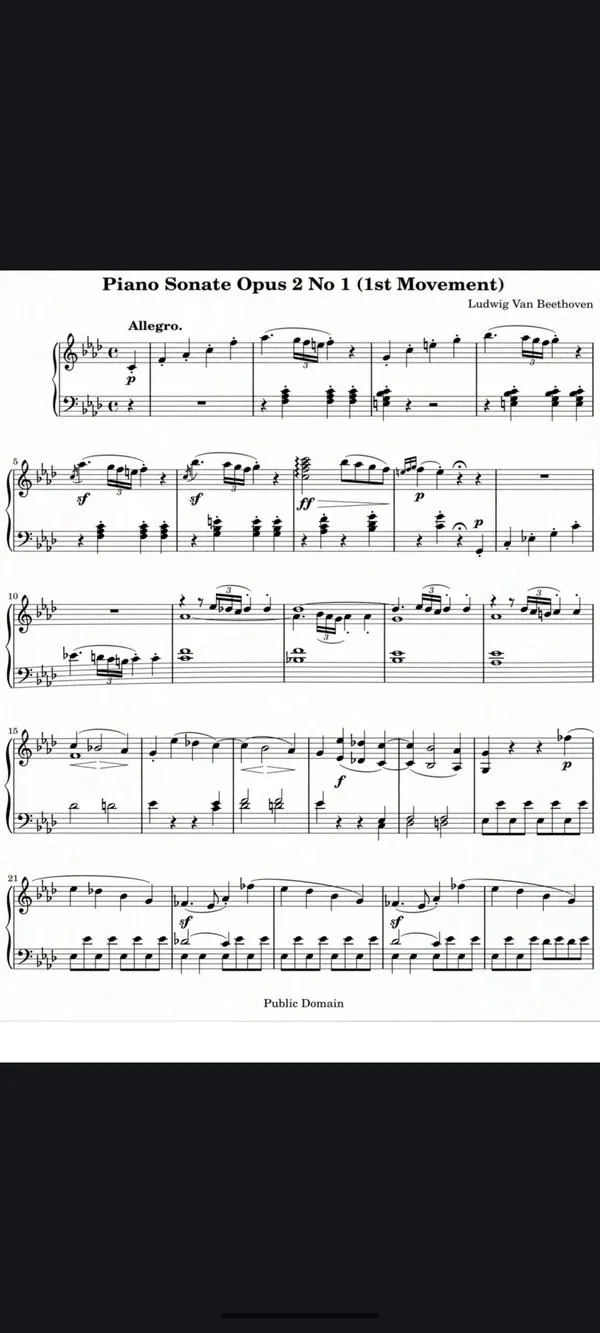
Since I built this part, a word on how it works. Rather than just squaring the page up by its corners, MusicTools finds the staves, the groups of five lines that run across the page, and straightens the page until they come out level and evenly spaced. That takes out the tilt of the phone and the curl of a book’s page in one go. It all happens on the device; nothing is uploaded.
Half-page turns: I never lose my place
Held upright, the iPad shows one page at a time, and a normal page turn swaps the whole page at once. Turn a moment too early and the bar you’re playing disappears; turn too late and you miss the start of the next page.
So I set Turn by to Half Page in Settings. Now the first turn replaces only the top half of the screen, with the top of the next page. The lines I’m playing at the bottom don’t move at all, so I can turn whenever it’s convenient, finish the line, and carry on at the top. The next turn swaps the bottom half.
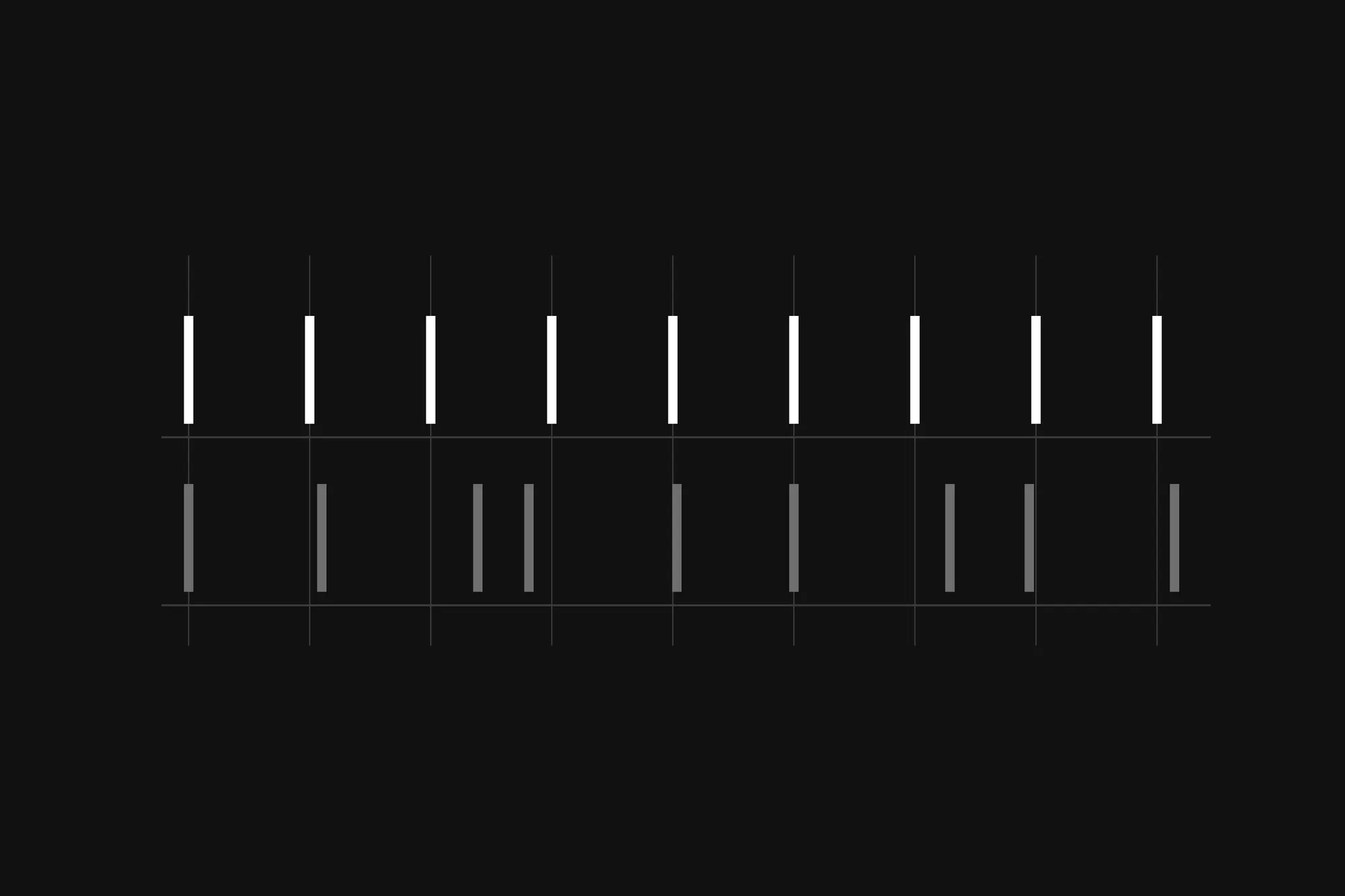
It works the same however the page gets turned: a tap, a Bluetooth pedal, a face gesture (more on that next), or auto page turn, where the app turns the pages by itself in time with the metronome.
Hands-free page turning: the wink didn’t work for me, but my lips did
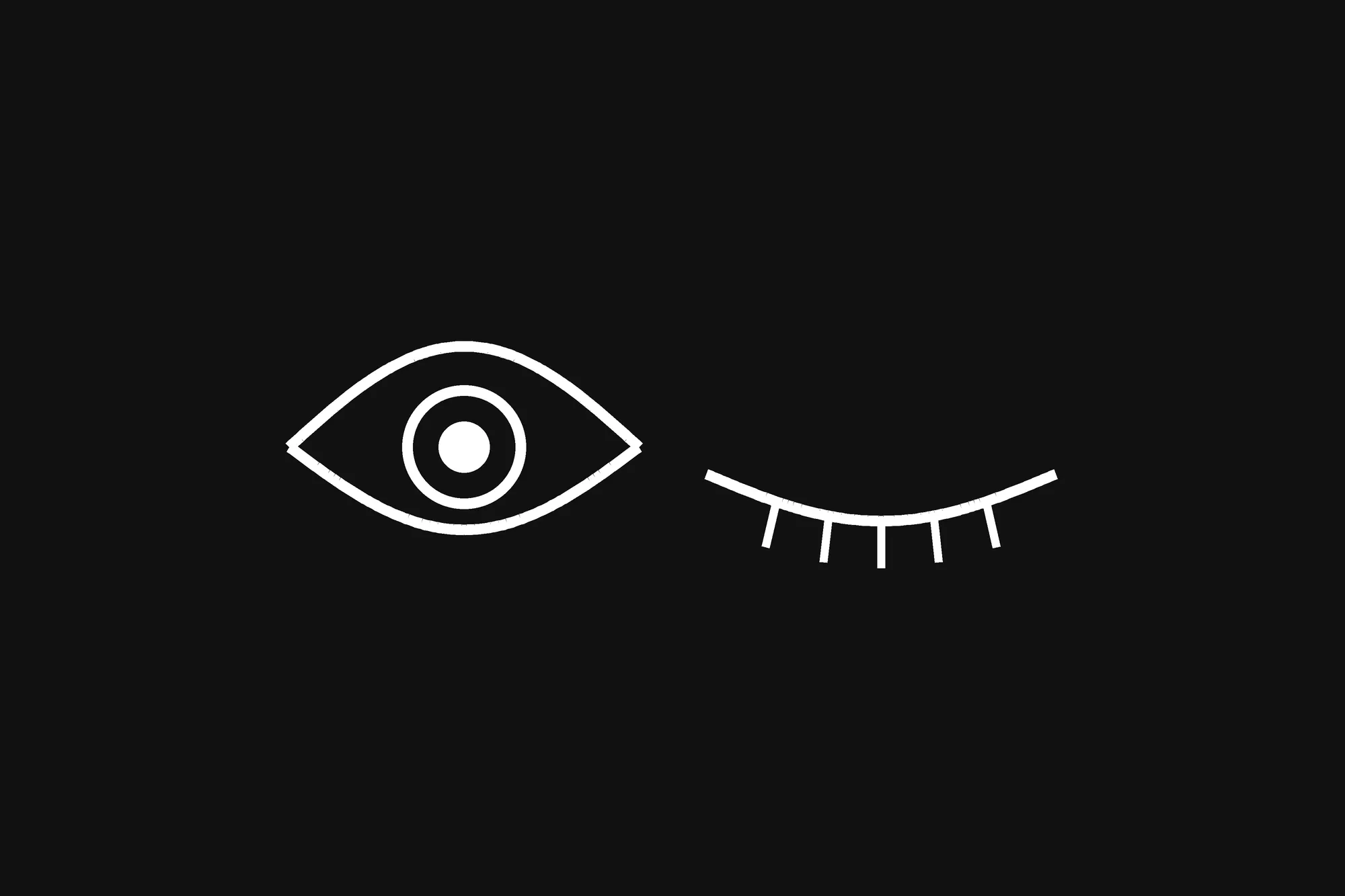
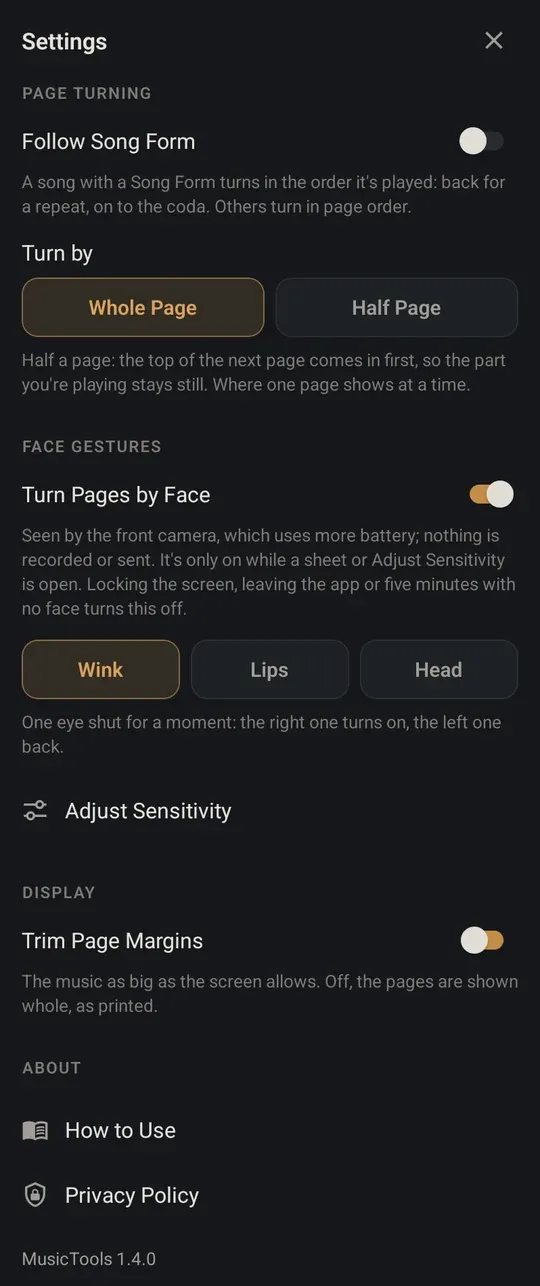
MusicTools can also turn pages with a face gesture, using the front camera. You turn on Turn Pages by Face in Settings and choose a gesture: a wink, pushing your lips to one side, or turning your head.
I started with the wink. For me, though, the recognition rate was a little low, and some of my winks didn’t register. So I switched to Lips, and that worked well: push my lips to the right and the page turns forward, to the left and it goes back, and my hands never leave the keys.
I left the head gesture alone. At the piano your whole body moves as you play, and a head gesture can turn the page all by itself.
If you try it, Adjust Sensitivity lets you test your gesture and set how readily it turns the page. The camera is only on while a score is open, and nothing it sees is saved or sent anywhere.
Writing on the score
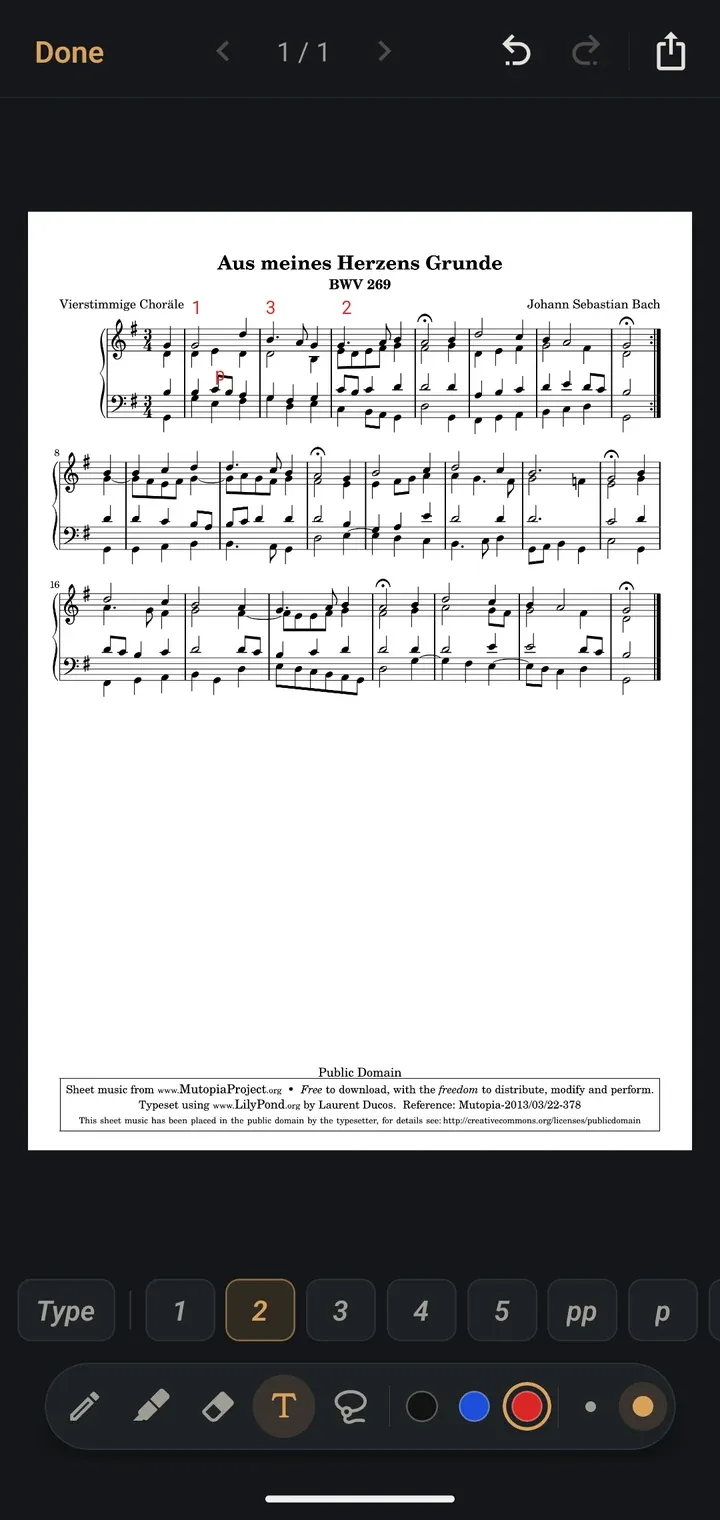
The writing tools aren’t packed with features: a pen, a highlighter, an eraser, text, and stamps for fingerings and dynamics. But they never got in the way. I could mark what I needed while practicing and get straight back to playing. The notes sit on top of the score, so the original PDF stays as it was.
Recording while I practice
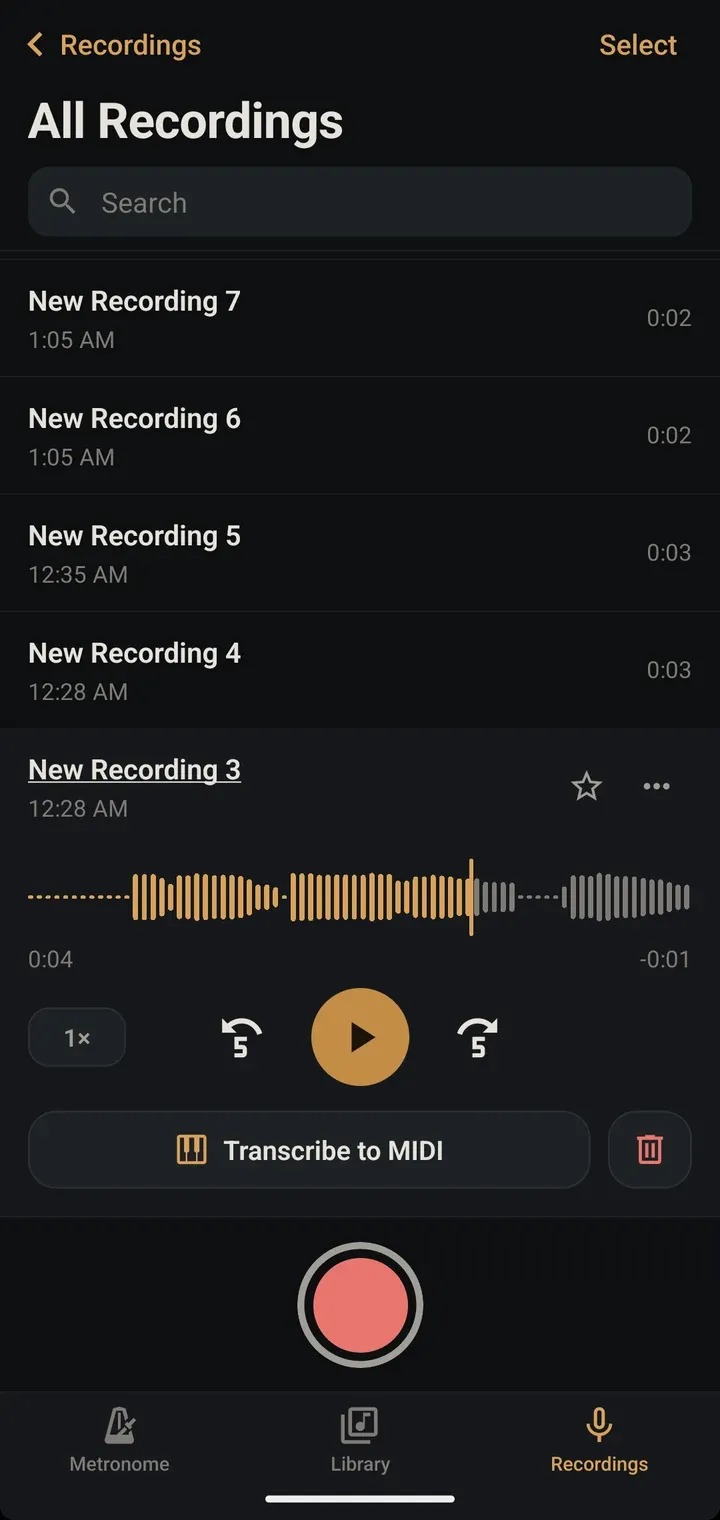
This one turned out to be really convenient. I start a recording in the Recordings tab, go back to the score, and it keeps recording while I play. So I could practice from the score with the recording running the whole time, without switching apps, and listen back afterwards. It keeps going with the screen off, too, and recordings play back at half speed if you want to hear a passage slowly.
Sending a PDF to a friend
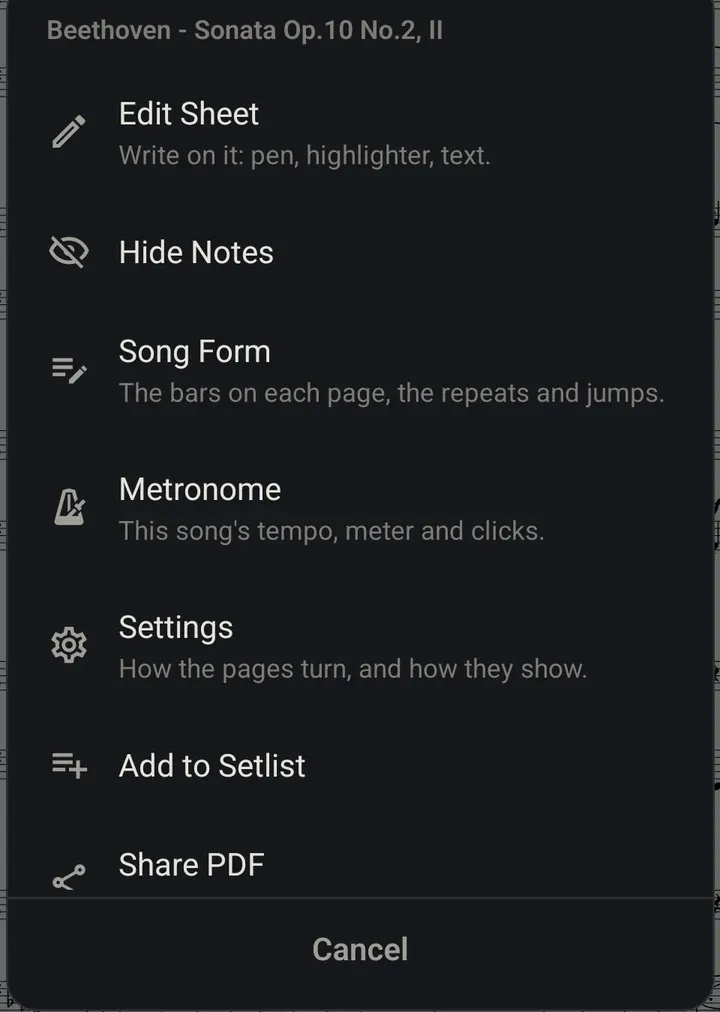
A friend needed one of my scores, and I could send it right from the app: Share PDF in the score’s menu, with my notes or without them.
Looking back
Put together: scanned pages I could read without getting dizzy, half-page turns that kept my place, hands-free page turns with my lips, notes and recordings without leaving the score, and a PDF for a friend in a couple of taps. The wink was the one part that didn’t work well for me, and lips did the job instead.
If you’re looking for an iPad score app that turns the pages of your piano scores while you practice, MusicTools is free on the App Store for now. If you try it, I’d like to hear how it goes.